Swan - Planificare Resurse
The planning applicaton is a typical resource planning application.
The application has as a main element a graphic on resources on Y axis and time on X axis.
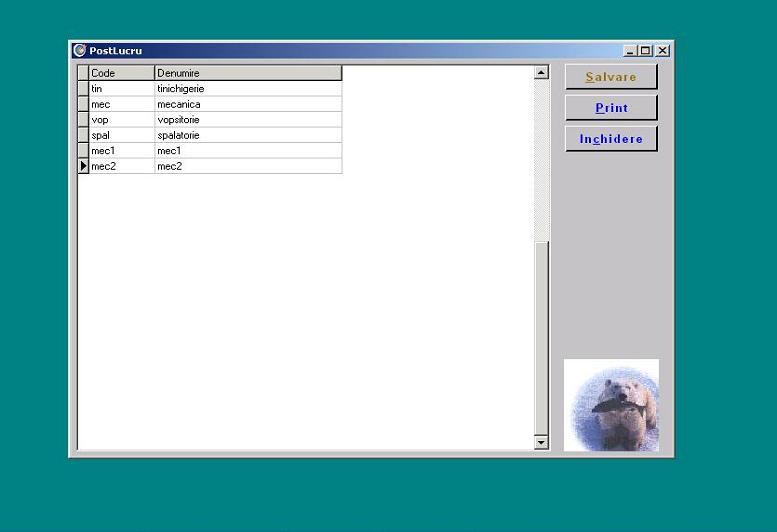
- The resources can be defined according to the client's demands. Here are some examples:
- workstations on elevating auto services
- humans for planning tasks
- auto numbers for planning races
- green - initial
- red - state 1 (in progress)
- yellow - state 2 (finalized)
X axis represents time- from 7.30 to 19.30, but it can be extended for a larger period of time.
The procedure is very simple: by clicking on the screen on the line of the chosen resource and the desired starting hour; then click to chose the ending hour , and complete by adding it in the appointment list, with comments if necessary.
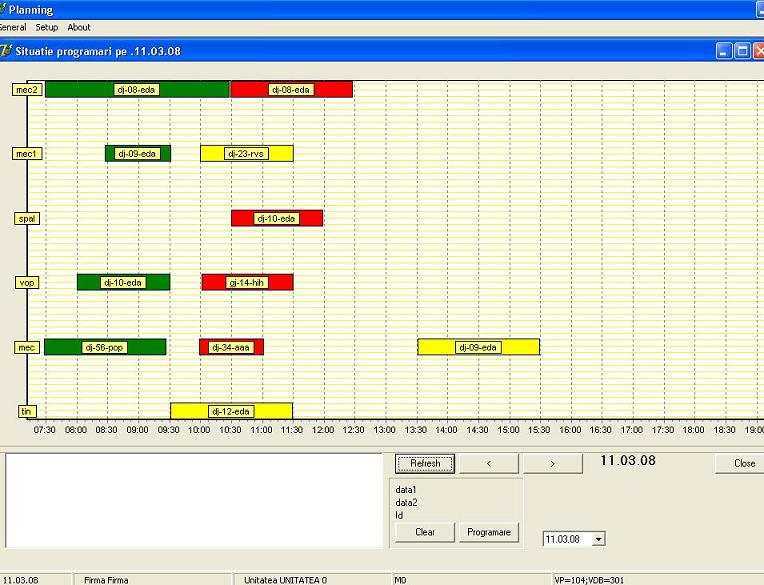
By positioning th mouse on the colored screen all the details of the appointment can be seen.
-
The states of a colorful box are:
The colors correspond to states in time of the certain resource which is encoded by each client according to his desires.
The resources can be defined for work stations
- For auto services that use the integrated application Edasoft-Modul Service, we offer an alternative resource planning application:
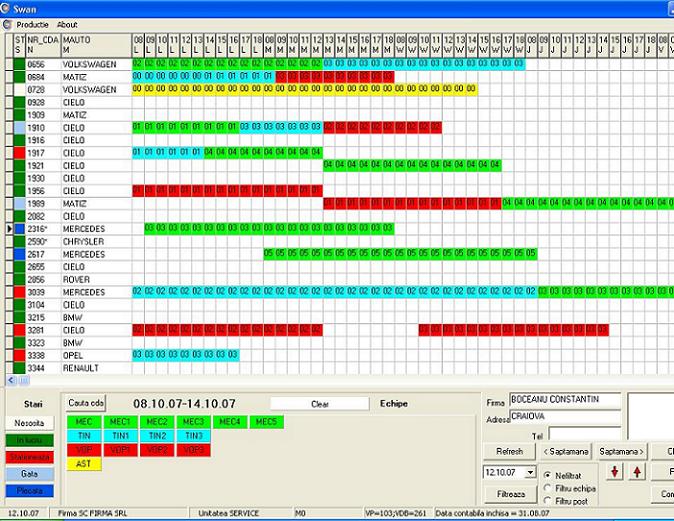
- On Y axis of the graphic will be placed open orders from that particular week and time will be represented on X axis , by days of the week/hour, the time interval will be defined between 8.00 si 18.00, but it can be modified according to client requirements.
- Workstation are defined by the user, each workstation is represented with a different color.
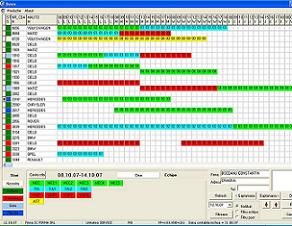
- On the graphic, open orders will appear.
- The first column of the graphic represent the state of the appointment: on its way,in progress ,stationed, ready or departed.
- When an order has state "departed" it will no longer appear in the following week.
- For a new order,the order button is pressed and the window for the order opens; we press insert, a new order is made, this window is closed, and then, after pressing refresh, this order will appear of the graphic.
- The orders can be ordered by nr_cda.
- Scheduling a car is done in the following manner: we click the desired team, we go to the graph to where the order is, at initial time and date at which we want to schedule it, then we click the final hour; the application completes all "squares" from this time interval.
- If we want to schedule a car for the following week, we schedule it on Saturday at 18 at any team, then we click "week", and the order will appear next week as well.
- We have the possibility to search for a certain order on the graphic by pressing the button "search cda", we write the number of the order that we are looking for and the cursor will position on that order.
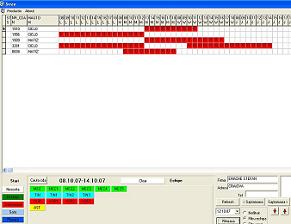
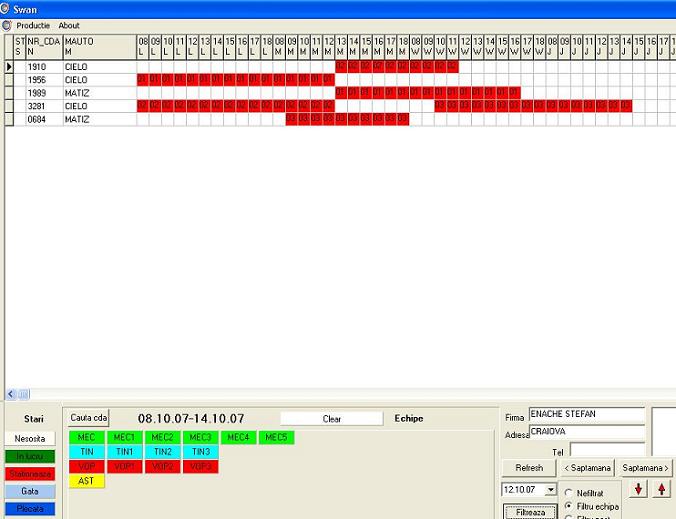
- We can track at any moment, from any team of within the service,the state of execution for each automobile, thus eliminating dead time. For this we filter the certain team, meaning press the button "post filter" or "team filter",click on the color of the desired team and then the button "filter".
- Furthermore, we can print this report on days.